
Canon MP287 not printing color properly? Learn the common causes and step-by-step fixes to restore color printing quickly and easily.
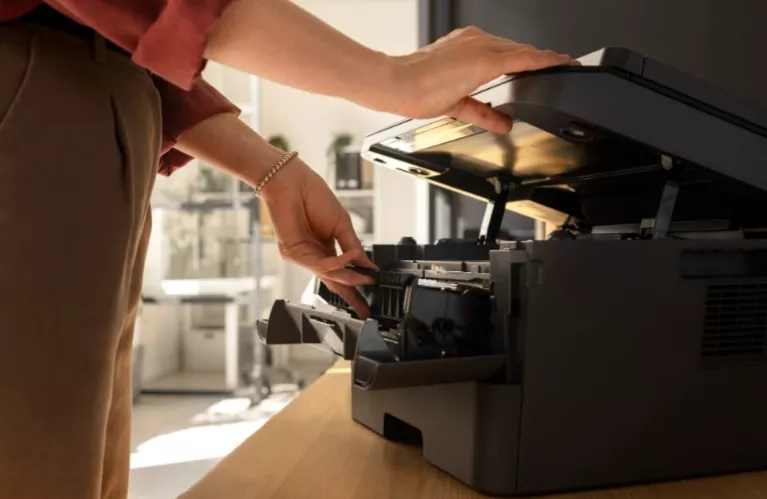
Printers are an integral part of life, mostly at the workplace, for educational purposes, and many more. We can take out color prints of whatever we want by using printers.
To know more about these printers, their working, and related issues, here is all the information you need.
Trouble We Face in Color Printing
There could be any reason for your printer not working properly, like a problem in the ink cartridge, a problem in the printer itself, or maybe because of the paper you are using.
Let us understand in detail what different kinds of problems occur that make your printer not work properly.
- Empty Ink Cartridges: The most common and basic reason for the printer not printing color properly is that the cartridge is empty. If the cartridge is empty, your printer can not print colors.
- Clogged Printhead Nozzles: Clogging is the residue of ink collected in the printhead that does not allow the ink to flow properly. If you see faded or missing colors printing on your paper, that could possibly be the result of clogged printheads.
- Incorrect Settings for Printer and Paper: If you want to print color, turn off the “Grayscale” setting. This setting could be a reason why your printer is not printing colors.
- Malicious Printer Drivers: If you are using an outdated and malicious driver for your printer, your printer can stop working or can work very slowly as well. To fix this issue, you can download driver Canon MP287.
- Air Bubble in Ink Cartridges: The air trapped in cartridges disturbs the flow of ink, which causes issues in printing color.
These are the primary issues you face in color printing now; let’s see what could possibly be done to fix these issues.
How to Fix Color Printing Problem
Most of the issues can be resolved easily by following a few steps. You just have to be very careful and make sure to keep your printer active at fixed intervals of time.
The following methods are used to fix color printing.
Step 1: Cleaning Printhead Nozzles
It is important to clean your printhead properly to maintain the smooth flow of ink. We can manually clean the nozzle, and the computer can automatically clean it as well.
The following are the ways to clean printhead nozzles.
Manual way of cleaning the printhead
- Take out the ink cartridge and then the printhead from the printer.
- Keep the printhead in lukewarm water for 10-15 minutes.
- Then take it out, let it dry completely, and fit it again in the printer.
Automatic cleaning of the printhead using printer settings
- Click on the ‘Printer’ menu and open the ‘Maintenance’ setting.
- Choose to clean the printhead and run a cleaning cycle.
- Recheck the settings and try printing again.
Deep Cleaning
- If color printing is still not working, deep cleaning is a must.
- Clean the nozzle again properly.
- Even if it does not work now, change the printhead.
Step 2: Check and Replace Ink Cartridges of Printer
Check for the ink cartridge; if it is empty or faulty, replace the cartridge with a new one.
The following are the methods to replace ink cartridges.
Recheck ink cartridges.
- Click on the ‘Canon Printer Utility’ and open it.
- Open the ‘Maintenance’ tab and search for ‘ink levels.’
- If you find your cartridge empty, replace it.
- Open the ink compartment after turning off the printer.
- Take out the empty cartridge and replace it.
Step 3: Update Printer Drivers
Keep your drivers up-to-date to avoid them slowing down.
Here is a guide on how to update your drivers.
How to update Canon printer drivers
- To update your Canon driver, open Canon’s official website and enter your printer’s model name.
- Install the latest version of the driver in your system.
- Update your drivers and restart your printer.
Step 5: Removing Air Bubbles
To fix the trapped air in the ink cartridge, follow the given steps.
Steps to remove air trapped in the ink cartridge
- Take out the ink cartridge and shake it carefully for a bit; it will remove the air from the cartridge.
- Wait for the ink to settle, and then fit that cartridge again in the printer properly.
Step 6: Fixing Colors for Printing
The wrong alignment of colors can create an issue in printing colors. To ensure accuracy in color printing, align your colors in the order you need. And after changing the settings, try to check by printing a test page.
Read Also: How to Connect Multiple Display Monitors Using Your Laptop
Step 7: Advanced Fixes for Persistent Canon Printer Issues
Even after doing all the steps mentioned above, if your color printing still does not work, try a factory reset method by following the steps mentioned below.
Factory resetting
- In your printer, open ‘Menu.’
- Go to ‘Device Settings’ and then search for ‘Reset.’
- Select ‘Reset All’ or ‘Factory Reset.’
- And restart your printer.
To avoid issues in printing, make sure to always keep your drivers up-to-date and avoid keeping your printer inactive for a long period of time. Take good care of your printer for its better performance.
Try these fixes now to restore your Canon MP287 color printing and avoid costly repairs or cartridge replacements.
